Showing posts with label နည္းပညာ. Show all posts

26/08/2012

TP-LINK driversအခက္ခဲျဖစ္ေနပါသလား?

windwosအားလံုးအသံုးျပဳနိုင္ပါတယ္ဗ်ာ....
နက္စ္ခ်ိတ္ဖို႕driverအခက္ခဲျဖစ္သူမ်ားအမ်ိဳးစားလိုက္သာယူေပေတာ့


TP-LINK TF-3239DL drivers
Download link:Download Now
Adapters & 56K Modem -> Internal Data/Fax Modem
Download link:Driver Download
Download link:2Driver download
TP-LINK TF-3239DL drivers
Download link:Driver2
Download link:Driver1
TP-LINK TF-3200 drivers
Download link:Driver1
Download link:Driver2
TP-LINK TG-3468 drivers download
Download link:Driver1
Download link:Driver2
TP-LINK TL-SC3171 drivers download
Download  link:TL-SC3171 1.6.17(driver)
Download  link:TL-SC3171_1.16.18(Driver)
Download  link:Intelligent IP Installer(tool)
Download  link:undled Surveillance Software(software)
ကဲဒီေန႕ဒီေလာက္ပဲေနာက္မွဒီပို႕စ္ကိုထပ္ျဖည့္မယ္
ေက်နပ္က်လိမ့္မယ္လို႔ေမွ်ာ္လင့္ပါတယ္


25/08/2012

Fonts Change ရန္လိုအပ္မည့္software

Fonts Change ရန္ အတြက္ ေဖာင့္လွလွေလးေတြ
အဆင္ေျပတာနဲ႕ေဒါင္းပါ
အားလံုးတူတူပါပဲဗ်ာ..
phone:software(free)
Download link:Root%29.apk
Download link:Root.apk?
Download link:ZawgyiRoot.apk
Download  link:mediafire

iTunes 10 တြင္ Zawgyi Font ရေအာင္ လုပ္ျခင္း

iTunes 10 တြင္ Zawgyi Font သံုူးလို႕ရပါပီ

အရင္ဆံုး Resource Folder ထဲက en.lproj ေအာက္ကTextStyles.plist ဆိုတာကို ရွာၿပီး Notepad လိုမ်ိဳး Plain Text Editor နဲ႔ဖြင့္ပါ။

ကၽႊန္ေတာ္ကေတာ့  Notepad ++ နဲ႔ပဲ ျပပါမယ္။

ဖြင့္လိုက္ရင္ ပံုထဲက အတိုင္း xml နဲ႔ေရးထားတဲ့ Text File ေပၚလာပါမယ္။
ပံုထဲမွာ Segoe UI (Windows 7 Default Font) ႏွင့္ Tahoma ဆိုတဲ့ Fonts ႏွစ္ခုရယ္ ပံုထဲမွာ မျမင္ရတဲ့ Lucida Grande ဆိုတဲ့ Font ရယ္ေတြ႕ရပါမယ္။

ၿပီးရင္ အခုနကေျပာတဲ့ Fonts သံုးခုလံုးကို Zawgyi-One နဲ႔ လဲပါမယ္။ Replace ကို Ctrl + H ႏွိပ္ၿပီး ေခၚလို႔ရသလို ပံုမွာလည္းျပထားပါတယ္။

Find What တြင္ Segoe UI, Tahoma နဲ႔ Lucida Grande တို႔ကို ရိုက္ထည့္ၿပီး Replace With မွာ Zawgyi-One သို႔ မိမိသံုးမဲ့ Font Name ကို ရိုက္ထည့္ႏိုင္ပါတယ္။ ၿပီးရင္ Replace All ကိုႏွိပ္ၿပီး Save လုပ္ေပးလိုက္ပါ။

အားလံဳး လုုပ္ျပီးသြားျပီ ဆိုရင္ေတာ့ ေအာက္ကအတိုင္း ျမင္ရမွာ ျဖစ္ပါတယ္။

တစ္ခုေကာင္းတာက zawgyi မသံုးခ်င္ရင္ lang ခ်ိန္းလိုက္တာနဲ႔ အဆင္ေျပသြားပါလိမ့္မယ္။
အဆင္မေျပသူမ်ားဆက္သြယ္နိုင္သည္
ဆက္သြယ္ရန္လိပ္စာ။Email:kyawkyawmowe594"gmail.com
ဆက္သြယ္ရန္လိပ္စာ။phone:60108605040

Myanmar Font for Nokia

Download link:FontRouterMan
Download link:FontRouter.LT.Build2007
အဲဒီႏွစ္ခုကို ေဒါင္းျပီး ဖံုးထဲက internal memory မွာ install လုပ္လိုက္ပါ..
filemanager ကိုသံုးျပီး C:/data/Fonts ထဲကို ေဇာ္ဂ်ီေဖာင့္(.ttf ျဖစ္ရပါမယ္ .TTF မျဖစ္ရပါဘူး)ထည့္လိုက္ပါ..
ျပီးရင္ ခုနက install လုပ္ထားတဲ့ FontRouterMan ကိုဖြင့္ပါ
option ကေနျပီး c ေအာက္ ကိုယ္ထည့္ထားတဲ့ ေဖာင့္ဖိုင္ကိုေရြး ျပီးရင္ ထြက္လိုက္ပါ..
www.symbian-guru.com/wp-content/uploads/2009/08/how_to_change_choos..." height="240" width="320" />
ဖုံးကို reboot ျပန္လုပ္လိုက္ပါ
ျမင္ကြင္းကိုေတာ့ အထဲမွာပါတဲ့ အတိုင္း လိုက္ညွိၾကည့္လိုက္ေပါ့…ေသခ်ာတာက တခါလုပ္ျပီးတိုင္း တစ္ခါ reboot လုပ္ရမွာပါ..ျမင္ကြင္းကိုေတာ့ အထဲမွာပါတဲ့ အတိုင္း လိုက္ညွိၾကည့္လိုက္ေပါ့…ေသခ်ာတာက တခါလုပ္ျပီးတိုင္း တစ္ခါ reboot လုပ္ရမွာပါ..
nokia 5800 နဲ႔ N95 မွာေသခ်ာေပါက္ရပါတယ္ စမ္းၾကည့္ၾကပါ

အဆင္မေျပလွ်င္ေမးလ္ျဖည့္ေသာ္လည္းေကာင္း..ဖုန္းျဖစ္ေသာ္လည္းေကာင္း
ေမးျမန္းနိုင္ပါတယ္ဗ်ာ...
ဆက္သြယ္ရန္လိပ္စာ။Email:kyawkyawmoe594"gmail.com
ဆက္သြယ္ရန္လိပ္စာ။phone:60108605040

24/08/2012

Huawei C8650 ႏွင့္ C8800 ဖုန္းမ်ားအတြင္းသို႔ Myanmar Font ႏွင့္ Keyboard ထည့္သြင္းပံု


ျပည္တြင္းတြင္ CDMA 800 MHz ဖုန္းမ်ား အသံုးျပဳမႈမ်ားလာသည္ႏွင့္ အမွ် 800 MHz ဟန္းဆက္မ်ားတြင္ လူသံုးမ်ားေသာ ဟန္းဆက္မ်ားမွာ C8650 ႏွင့္ C8800 ဖုန္းမ်ားျဖစ္ေနတာကို ေတြ႔ရွိရပါတယ္။ ယင္းဖုန္းႏွစ္မ်ိဳးကုိ ျမန္မာစာ Fonts ထည့္သြင္းရန္ အရင္ဆံုး Root ျပဳလုပ္ရန္ လိုအပ္ပါတယ္။ ထိုကဲ့သို႔ Root ျပဳလုပ္ပံုအေသးစိတ္ကုိေတာ့သိေလာက္ပီထင္ပါတယ္ဗ်ာ..
ယခု Huawei C8650 ကုိ Myanmar Font ထည့္သြင္းျခင္းကုိ စတင္ေဖၚျပေပးမွာျဖစ္ပါတယ္။ Font ထည့္သြင္းရန္ လိုအင္ေသာ Software မ်ားမွာ Root_Explorer , DroidSansFallback.ttf, MyanDroid-Soft-Keyboard စသည္တို႔လိုအပ္ပါတယ္။ ယင္း Software မ်ားအားလံုးကို ေအာက္မွာတင္ေပးထားပါတယ္။
Software မ်ားအားလံုးရရွိၿပီဆိုရင္ ဖုန္းကုိ ကြန္ပ်ဴတာႏွင့္ ခ်ိတ္ဆက္ၿပီး SD ကဒ္အတြင္းသို႔ထည့္၍ Root_Explorer ႏွင့္ MyanDroid-Soft-Keyboard တို႔ကုိ ဖုန္းတြင္ Install ျပဳလုပ္ေပးရပါမည္။ Install ျပဳလုပ္ၿပီးပါက Root_Explorer အတြင္းရွိ System အတြင္းသို႔ဝင္၍ app အတြင္းသို႔ ထပ္မံဝင္ေရာက္ရပါမည္။ Install ျပဳလုပ္ၿပီးပါက Root_Explorer အတြင္းရွိ System အတြင္းသို႔ဝင္၍ app အတြင္းသို႔ဝင္ေရာက္ၿပီးပါက Screen ထိပ္နားရွိ Mount R/W ကုိတစ္ခ်က္ႏွိပ္၍ Mount R/O ကုိေျပာင္းေပးၿပီး SogouInput.apk ဖိုင္ကုိ Delete ျပဳလုပ္ေပးရမည္ျဖစ္သည္။
ထုိကဲ့သို႔ Delete ျပဳလုပ္ရာတြင္ အျခားေသာ ဖိုင္မ်ားကို မွားယြင္းဖ်က္မိျခင္းမရွိေစရန္ သတိျပဳရပါမည္။
ၿပီးေနာက္ Root_Explorer အတြင္းရွိ sdcard အတြင္းသို႔ဝင္၍ DroidSansFallback.ttf ကုိ Copy ကူး၍ အျပင္ဘက္ရွိ System အတြင္းရွိ fonts ထဲသို႔ဝင္၍ Screen အေပၚရွိ Mount R/W ကိုတစ္ခ်က္ႏိွပ္၍ Mount R/O သို႔ေျပာင္းေပးၿပီး Paste ျပဳလုပ္ေပးရမည္ျဖစ္သည္။ ထိုသို႔ျပဳလုပ္ၿပီးပါက ယင္း Paste လုပ္လိုက္ေသာ Fonts ကိုဖိႏွိပ္ထားၿပီး Options ေပၚလာပါက Permissions ကို ႏွိပ္၍ ပံုပါအတိုင္းအမွန္ျခစ္မ်ားေပးရမည္ျဖစ္သည္။


Root_Explorer အတြင္းရွိ sdcard အတြင္းသို႔ဝင္၍ DroidSansFallback.ttf ကုိ Copy ကူးပါ။
Copy ကူးလာေသာ DroidSansFallback.ttf ကုိ မွ်ားျပထားေသာ Font ဖိုင္အတြင္းသို႔ Paste ျပဳလုပ္ပါ။
Paste လုပ္ၿပီးေသာ DroidSansFallback.ttf ကုိ Option အတြင္းရွိ Permissions ကုိႏွိပ္၍ ပံုပါအတိုင္း အမွန္ျခစ္ေပးပါ။
ၿပီးေနာက္ဖုန္း Setting အတြင္းရွိ Language & Keyboard အတြင္းသို႔ဝင္၍ MyanDroid Soft Keyboard ကုိအမွန္ျခစ္ေပးၿပီး စတင္အသံုးျပဳ၍ရၿပီျဖစ္သည္။ အထက္ပါအဆင့္မ်ားအားလံုး ျပဳလုပ္ၿပီးပါက Huawei C8650 အတြင္းသို႔ ျမန္မာစာ Font ႏွင့္ Keyboard ထည့္သြင္းျခင္းၿပီးဆံုးၿပီျဖစ္သည္။
Huawei C8800 အတြင္းသို႔ Myanmar Font ႏွင့္ Keyboard ထည့္သြင္းပံုမွာ C8650 ထည့္သြင္းသည့္ ပံုစံအတိုင္း ျပဳလုပ္ရမည္ျဖစ္ေသာ္လည္း C8800 တြင္မႈ Sogoulnput.apk ဖိုင္ကုိ Delete ျပဳလုပ္ေပးရန္မလိုအပ္ေပ။ က်န္အဆင့္မ်ားမွာ C8650 ျပဳလုပ္သည့္ ပံုစံအတိုင္ပင္ျဖစ္သည္။
မွတ္ခ်က္။        ။ အထက္ပါ Myanmar Font ထည့္သြင္းျခင္းမွာ မွားယြင္းမႈတစ္စံုတစ္ရာရွိခဲ့ပါက ဖုန္းပ်က္တတ္ေသာေၾကာင့္ တစ္ဆင့္ျခင္းကို ေသခ်ာစြာ ျပဳလုပ္ရန္လိုအပ္ပါသည္။ မွားယြင္းျပဳလုပ္မႈေၾကာင့္ ျဖစ္ေပၚလာေသာအနဲငယ္ဆံုးရံုူးသြားပါကတာ၀န္ယူမည္မဟုတ္ပါ
သို႔ေသာ္ခုေပးတဲ့ေမာ္ဒယ္နံပတ္နဲ႕ဆိုင္ရာဆိုင္ရာကိုေရြးရန္လိုအပ္သလိုက်ေနာ္ေျပာထားသလိုလဲေနရာေလးေတြလြဲေနတတ္ပါတယ္..

အဆင္ေျပမယ္လို႔႕ပဲေမွ်ာ္လင့္ေနမယ္ေနာ္...အခက္ခဲျဖစ္ေနပါက(ျပန္လည္ဆက္သြယ္ပါ(email:kyawkyawmoe594"gmail.com)


Download link:Root.zip
Download link:z-4-root1.apk
Download link:fontchanger.zip
Download link:Keyboard%20(1.1.91).apk
Download link:netqinanti_2iv1668o.apk

Rootလုပ္မယ္

Root ဆိုတာဘာလဲ???
Linux OS မွာေတာ့ Root ကို Administrator အျဖစ္ သတ္မွတ္ပါတယ္။ Windows Platform မွာေတာ့ Admin Level တစ္ေယာက္အေနျဖင့္ Full Permission ကို အျပည့္အဝရပါတယ္။ Linux Platform မွာေတာ့ Root Level တစ္ေယာက္အေနျဖင့္ Full Permission အျပည့္အဝရသည့္အျပင္ Open Source ျဖစ္သည့္အတြက္ System အပိုင္းထိပါ ကိုင္တြယ္ႏိုင္ပါတယ္။

Android OS မွာ ဘာလို႕ Root လုပ္ၾကတာလဲ???
အထက္မွာ ရွင္းျပခဲ့သည့္ Root Level အေၾကာင္းကို အထိုက္အေလ်ာက္နားလည္မည္ဆိုပါက ဘာေၾကာင့္ Root လုပ္တယ္ဆိုတာကို ဆက္စပ္ေတြးၾကည့္လို႕ရပါတယ္။ အလြယ္ေျပာရရင္ ဖုန္းမွာ ပါဝင္ၿပီးသား System and Application ေတြအျပင္ ပိုသုံးခ်င္သူ၊ ပိုကလိခ်င္သူေတြက Root လုပ္ၾကပါတယ္။ ( ကြ်န္ေတာ္ အပါအဝင္ေပါ့...။ ) အဲလို ကလိႏိုင္ဖို႕အတြက္ Android ဖုန္းကို Root လုပ္ၾကပါတယ္။ iphone မွာေတာ့ ဒါကို Jail break လုပ္တယ္လို႕ ေခၚပါတယ္။
စာဖတ္သူက Andorid ဖုန္း အသုံးျပဳသူဆိုရင္ေတာ့ ေအာက္ပါ အဆင့္ေတြအတိုင္း လြယ္ကူစြာ Root လုပ္ႏိုင္ပါတယ္။

Root လုပ္ဖို႕အတြက္ Root Application တစ္ခုလိုပါတယ္။ သို႕ေသာ္ မိမိကိုင္ေဆာင္ေသာ ဖုန္း၏ Brand and Model ကို လိုက္ၿပီး Root လုပ္ႏိုင္တဲ့ Application ေတြကို ေသခ်ာေရြးခ်ယ္ဖို႕လိုပါတယ္။ ယခု စာေရးသူေဖာ္ျပေပးမည့္ Z4root တြင္လည္း သူနဲ႕ Compatible ျဖစ္သည့္ ဖုန္းအမ်ိဳးအစားမ်ားကို ေဖာ္ျပေပးထားပါတယ္။ မိမိ၏ ဖုန္းအမ်ိဳးအစား အတိအက် ပါဝင္မွသာလ်င္ Root လုပ္ပါရန္ ၾကိဳတင္ သတိေပးအပ္ပါသည္။


Z4root
Compatible with Permanent Root Option

Samsung Galaxy S (All variants)
Backflip
Sony X10
Xperia Mini
Droid 2
Galaxy Tab
Galaxy I5700
Galaxy 3 I5800
Droid X
Samsung Acclaim
Cricket Huawei Ascend
Motorola Cliq
Huawei 8120
Huawei C8500
Huawei C8600
Hero
G1
Optimus T
Droid 1
Garmin Asus A50
Motorola Defy
LG Ally
Motorola Flipside
Motorola Milestone 2
Dell streak
X10 Mini Pro
Smartq v7 android 2.1

( Reference by xda-developers.com )

အထက္ေဖာ္ျပပါ ဖုန္းအမ်ိဳးအစားတြင္ ပါဝင္မွသာလ်င္ Z4root.apk ကို Download လုပ္ယူပါ။

Download: Z4root 1.3.0.apk

1. Z4root.apk ကို မိမိဖုန္း၏ SDcard တြင္ ထည့္သြင္းပါ။

2. မိမိ Android ဖုန္း၏ Menu တြင္ File Manager ကို ရွာပါ။ ဝင္ပါ။ SDcard ကိုသြားပါ။ အဲမွာ ခုနက ကူးထည့္ထားတဲ့ Z4root.apk မွာ တစ္ခ်က္ႏွိပ္ပါ။ Install လုပ္ပါ။ Install လုပ္ၿပီးေနာက္ Application အား တန္းသုံးလိုပါက Open လုပ္ႏိုင္သလို Done မွာ ႏွိပ္ပါက Application ထည့္သြင္းမွဳ ၿပီးဆုံးသြားပါမည္။

3. Z4root Application ကို အသုံးျပဳၾကည့္ပါမယ္။ Menu ထဲတြင္Z4root ကို ရွာပါ။ ဝင္ပါ။ ပုံႏွင့္တကြ ေဖာ္ျပေပးလိုက္ပါတယ္။ ေလ့လာၾကည့္ပါ။


4. ဒီအဆင့္မွာ Root လုပ္ဖို႕အတြက္ ေရြးခ်ယ္စရာ ႏွစ္ခုရွိပါမယ္။ Temporary Root နဲ႕ Permanent Root ပါ။

Temporary Root ကိုေရြးခ်ယ္ပါက Root ကို ယာယီ လုပ္ေပးတာပါ။ ဖုန္းကို ပိတ္မိၿပီး ျပန္ဖြင့္ပါက UnRoot ျဖစ္သြားပါတယ္။

ဒါေၾကာင့္ အျမဲတန္း Root အျဖစ္ထားလိုပါက Permanent Root ကို ေရြးခ်ယ္ရပါမည္။ Permanent Root ကို ​ေရြးခ်ယ္ၿပီးပါက Rooting လုပ္ေနပါမည္။ ၿပီးပါက ဖုန္းကို Restart ခ်သြားပါမည္။ Android OS ျပန္လည္တက္ၿပီးပါက Menu ထဲတြင္ SuperUser ဆိုသည့္ Application Icon တစ္ခုေပၚေနၿပီ ဆိုပါက Android OS ကို Root လုပ္တာ ေအာင္ျမင္ပါၿပီ။


Root လုပ္ၿပီးၿပီဆိုေတာ့ ၾကိဳက္ရာ Android Application ေတြ၊ ျမန္မာေဖာင့္ေတြ၊ ျမန္မာလက္ကြက္ေတြႏွင့္ တျခားကလိစရာေတြ အမ်ားၾကီးထည့္သြင္း အသုံးျပဳႏိုင္ပါၿပီ။ ဒါေပမဲ့ ကိုယ္ဖုန္းက Root လုပ္ၿပီးသုံးေနတာဆိုတာကိုလဲ မေမ့ပါနဲ႕ေလ...။ Root လုပ္ထားေတာ့ ကိုယ္ဘာလုပ္လုပ္အတားအစီးမရွိ ကလိလို႕ရေနမွာပါ။ တခ်ိဳ႕ System အပိုင္းေတြကို ထိခိုက္သြားမယ္ဆိုရင္ေတာ့ စာေရးသူျဖင့္ မည္သို႕မွ
ကြ်န္ေတာ္တစ္ခုေျပာခ်င္တာကေတာ့အစဦးလုပ္ဖူးကိုင္ဖူးတာဆိုရင္ေသခ်ာဂရုစိုက္လုပ္ေစခ်င္တယ္ဗ်ာအခကိမသင့္ရင္compuiter
windowမတက္တဲ့ထိျဖစ္နိုင္သြားပါတယ္.....ဗ်ာ....အဆင္ေျပမယ္လို႕ေမွ်ာ္လင့္ပါတယ္..ေနာက္လဲဆက္တင္သြားမည္(mobileနဲ႔ပတ္သက္တာသိတာအကုန္တင္ေပးသြားမည္..
.

11/08/2012

Administrator Password in Windows?

Administrator Password  ကိုresetလုပ္မယ္
လုပ္နည္းေအာက္မွာ(အဂၤလိပ္လို)
his method includes the first thing which should do whenever you forget your Windows login password. When we install Windows, it automatically creates an account "Administrator" and sets its password to blank. So if you forget your user account password then try this:
Start your computer and when you see Windows Welcome screen / Login screen, press ++ keys twice and it'll show Classic Login box.
Windows_Classic_Logon_Box.png
Now type "Administrator" (without quotes) in Username and leave Password field blank. Now press Enter and you should be able to log in Windows.
Now you can reset your  acc  password from "Control Panel -> User Accounts".
Same thing can be done using Safe Mode. In Safe Mode Windows will show this in-built Administrator account in Login screen.
2nd Method:
If the above mentioned trick doesn't work, try following trick which is actually a loophole in Windows XP Setup and also a big security hole:
A. Boot using Windows XP Setup CD and follow the instruction like Accepting EULA, etc.
B. When it asks to repair your existing Windows installation, accept it and press "R" to run the repair.
C. Setup will start repairing your Windows and will start copying files, etc.
D. After a few minutes setup will restart your system and when it restarts don't press any key when it shows "Press any key to continue..." otherwise Setup will start from the beginning. Don't press any key and setup will resume where it left.
E. Now it'll start doing other tasks and will show a small progressbar with a few details in left side.
F. Look carefully at the details and when it shows "Installing devices", press +F10 keys in your keyboard.
G. It'll open a Command Prompt window. Now type nusrmgr.cpl and press .
Remove_Change_Administrator_Password_Using_Windows_XP_Setup.png
H. It'll open the same "User Accounts" window which you see in Control Panel.
I. Now you can remove or reset any account password without any problem.
3rd Method:
Windows XP and later Windows versions provide a built-in method to recover forgotten password by using "Password Reset Disk". If you created a Password Reset Disk in past, you can use that disk to reset the password.
If you don't know how to create a password reset disk, lets tell you in details. You can create the password reset disk using Control panel -> User Accounts applet.
First open Control Panel and click on User Accounts icon. It'll open User Accounts window. Now click on your user account and then click on "Prevent a forgotten password" link given in left-side pane. It'll open forgotten password wizard as shown in following screenshot:
Create_Windows_Password_Reset_Disk.png
Follow the instructions and you'll have a password reset disk in your hand.
4th Method:
You can also use various bootable rescue CDs to reset your Windows password as mentioned in following link:

There are also a few 3rd party utilities available to help you recover your Windows password such as:
  • UBCD for Windows
  • Ultimate Boot CD (UBCD)
  • Offline NT Password & Registry Editor
You can search for their download links on Google, Bing or any other favorite s

Speed Up Windows XP – Master Tutorial to Make Windows XP Super Fast

Speed Up Windows XPစမယ္ေနာ္
2. Right-click ကိုDesktopေပၚမွာေထာက္ပါProperties, ကိုနိပ္ပါေရာက္ရင္Appearance ကိုနိပ္ပါ Effects ဆိုတာထပ္နိပ္ပါEffectsေဘာက္ေလးက်လာပါပီေအာက္ကပံုနဲ႕စာအတိုင္းပါလုပ္သြားေပးပါရန္ပီးရင္ေတာ့
 okကိုနိပ္ပါ
အိ
  • Use the following transition effect for menus & tooltips.
  • Show shadows under menus.
3. Right-click ကို My Computerကိုေထာက္ပါProperties မွ Advanced tabကိုသြားပါ Settings 3ခုေတြ႕ပါလိမ့္မယ္ Performance ကိုနိပ္ပါ
ပီးရင္ေအာက္ကပံုနဲ႕စာအတိုင္းမွန္ျခစ္ပါ

  • Show window contents while dragging.
  • Smooth edges of screen fonts.
  • Use common tasks in folders (If you use the left side pane in My computer)
  • Use drop shadows on icon labels on the desktop. (to make the desktop icons label transparent.)
  • Use visual styles on windows and buttons. (If you use XP themes.)အေပၚကစာတိုင္းလုပ္ပီးပါကApply(or)okသို႕နိပ္ပါ
4. folderမွTools -> Folder Options. ကိုနိပ္ပါ View tab:ကိုနိပ္ပါ
ကဲအေေပၚကပံုအတိုင္းလုပ္ေပးသြားပါ
  • Automatically search for network folders & printers.
  • Display file size information in folder tips.
  • Display simple folder view in Explorer's Folders list.
  • Show encrypted or compressed NTFS files in color.
  • Show pop-up description for folder and desktop icons.
  • Use simple file sharingပီးရင္ေတာ့့okေပ့ါ
    ကဲဒီေလာက္ဆိုသူငယ္ခ်င္းရဲ႕computer(or)laptopအေတာ္အသင့္ေပ့ါသြားမွာပါပဲဗ်ာအဆင္ေျပပါေစ
    မရွင္းရင္(kyawkyawmoe594@gmail.com)ကိုအကူညီေတာင္းနိုင္ပါသည္

Create Bootable USB Drive to Install Windows Vista, Server 2008 and 7


 ေခါင္းစဥ္ၾကည့္ယံုနဲ႕သိ္ေရာေပ့ါဗ်ာ
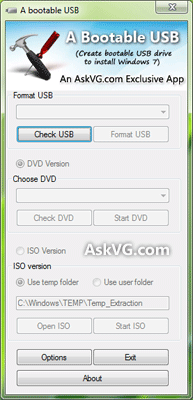
Once you meet the requirements, run the utility. Its a portable utility so doesn't need installation. Simply run it and check the option "I have read and accepted the following License Agreement". Now click on OK button and it'll launch the main application.
A_Bootable_USB
It also shows a Help window so that you can use the utility easily. The utility requires only 4 easy steps to follow:
  • Check USB drive (To check whether your USB drive is attached or not)
  • Format USB drive
  • Choose DVD or ISO image (To copy the required files to USB drive)
  • Start the process to create bootable USB drive
Download  Link:Bootable_USB_kk

28/05/2012

Photo Flash Maker Free Versionaေလးပါ

Photo Flash Maker Free Version Freeကဲဒါေလးကေတာ့ပံုေတြကိုသီခ်င္းေလးေတြနဲ႕ဖလပ္ေဆာင္းပံုစံမ်ီဴးေပ့ါေနာ္အသံုးျပဳနည္းကေတာ့ေနာက္မွပဲတင္ေပးေတာ့မယ္
ေလာေလာဆယ္လိုတဲ့သူေတြေဒါင္းက်ေပ့ါရွိပီသားသူေတြအတြက္ေတာ့ေဆာရီးပါလို႔ၾကိဳေျပာပါရေစေနာ္...ဟဲဟဲ
ကဲေအာက္မွာေဒါင္းရန္ကိုသာနိ္ပ္လိုက္ပါသူ႕ရ႕ဘားရွင္းကေတာ့21.5MBပဲဆိုေတာ့ပိုအဆင္ေျပတာေပ့ါ..ဟဲဟဲ
ေဒါင္းေလာ့လင့္။ေဒါင္းရန္နိပ္ပါ

19/05/2012

Now Hide HHD Very Easily in Your PC to Keep Safe

ကဲမူရင္းတိုင္းေလးပဲတင္ေပးလို္က္တယ္ေနာ္...........ဟီးဟီး..ဘာသာျပန္ေနရငိ္ပိုရွဴပ္မွာစိုးလို႔႕....တတ္လဲတတ္ဂူး..................ဟီးဟီး
ကဲၾကည့္ပါအုန္း

Sometime Unknown may wants to use your PC for argent case. But you think that the parson who is using your PC is not a good person. He can create a  great problem. For example he can stole our personal document. Now I am going to show you a very easy way how can you solve it very easily ........ You can hide your Hard disk ( HDD)


Now see How we will do the work >>>>>

1. At 1st go to run ( Start Menu > Run) Then type gpedit.msc 


2. Now a window will appear which name  Group Policy

3. Now go User configuration > Administrative Templates > Windows Components > Give Windows Explorer Commend

4. You will see many options on the right side.

5. For hide you drive you have to dabble on this  “Hide these specified drives in My Computer”

6. A new window will appearer. There select Enable  

7. On that window you will get a drop down menu. Click and select which drive you want to hide one or all 
and press Apply > ok


8.  Now visit your my computer you will not able to see your drives.

9. By this way you can stop using your drives just use this one " Prevent access to drives from My Computer"

10. If you want to go back previous sating just see point 6 there select Not Configured

၀င္းဒိုး7themeလွလွေလးသံုးခ်င္လား


၀င္းဒိုး7themeလွလွေလးသံုးခ်င္ရင္ေတာ့ေအာက္မွၾကည့္ပါပံုေတြျပထားပါတယ္


Support:
- Windows 7 SP1
- X86(32Bit) and X64(64Bit)
- All Language Versions

Update in new version:
1-Insert new lion theme by bodik87
2-Insert new icon and wallpaper
3-Insert new logon screen
4-Insert Lion CustoPack Version
5-Insert New Flurry Screensaver by Matt Ginzton
6-Fix X64(64Bit) Bugs
7-Fix RocketDock Bugs
8-Fix Lion Theme Sound
9-Fix Login Black Screen

10-Remove Left Sider


ေဒါင္းေလာ့လင့္။THEMEေဒါင္းရန္

USB Driver virusကိုက္ေနလို႔စိတ္ညစ္ေနသလား?


2.  Delete All Shortcuts ဖိုင္ေတြအားလံုးdeleteလုပ္ပါေအာက္မွာပံုနဲ႕ျပထားပါတယ္

ဒီလိုူေတြ႕ရင္ေတာ့deleteသာလုပ္ပစ္လိုက္ပါ

3.ေဖၚတာတစ္ခုကိုဖြင့္ပါအဆင့္ဆင့္သြားလိုက္ပါ Tools>Folder Options>View and mark and un mark


Tools>Folder Options

mark and un mark


4.ဒီဖိုင္ကိုဒီလိုေတြ႕ရပါမယ္ Folder which is Hidden in the system.

Hidden Files 

Hidden in the system 

5.  commend.ကိုဖြင့္ပါrunကေန CMDဟုရုိက္ပါ
Win+R


6. ဖြင့္လာရင္ဒီစာကိုလုပ္ပါattrib -h -r -s /s /d n:\*.*
ကိုစစ္ခ်င္တဲ့ drive locationကိုုေရြွးပါ

attrib -h -r -s /s /d n:\*.*


 7.
ေတြ႕ပီဆိုရင္ေတာ့အမ္းဒါးေခါက္ပါ
ေအာက္ပါအတိုင္းေတြ႕ရမည္

ကဲအဆင္ေျပေလာက္ေရာေပ့ါေနာ္
ေဆာ့၀ဲကေတာ့ေအာက္မွာအဆင္ေျပတဲ့လင့္ကေနသာေဒါင္းပါ

17/05/2012

၀င္းဒိူးမၾကာခဏျပဳတ္က်ေနပါကေျဖရွင္းနည္း

အငယ္စား - အမ်ားဆုံးကေတာ့ Software Patch တစ္ခုခုေၾကာင့္ျဖစ္ႏုိင္ေခ်႐ွိပါတယ္။ Windows ကုိ automatic update လုပ္ဖုိ႕ Settingလုပ္ထားခဲ့ရင္ ကုိယ္သတိမထားမိလုိက္ဘဲ System ဖုိင္ေတြကုိေျပာင္းသြားႏုိင္ပါတယ္။ System ဖုိင္ေတြပဲျဖစ္ျဖစ္၊ driverဖုိင္ေတြပဲျဖစ္ျဖစ္ update လုပ္လုိက္ၿပီဆုိရင္ မူလ setting ကုိ ကြန္ျပဴတာကအလုိအေလ်ာက္မွတ္ထားေပးပါတယ္။ တကယ္လုိ႕ ျပႆနာတစ္ခုခု႐ွိခဲ့ မယ္ဆုိရင္နဂုိမူလပုံစံအတုိင္း ျပန္ထားေပးလုိ႕ရပါတယ္။ XP မွာဆုိရင္ေတာ့ SystemRestore ကုိသုံးရင္သုံး၊ ဒါမွမဟုတ္ ကြန္ျပဴတာကုိ Restart လုပ္၊ “တီ”ဆုိတဲ့ အသံၾကားၾကားခ်င္း F8 ႏွိပ္၊ Last Known Good Configurationကုိေ႐ြးၿပီး boot လုပ္လုိက္ရင္ ေျပလည္သြားပါလိမ့္မယ္။အလတ္စား -Last Known Good Configuration ကမကယ္ႏုိင္ဘူးဆုိရင္ေတာ့hardware ပစၥည္းတစ္ခုခု၊ ဒါမွမဟုတ္ System Softwareတစ္ခုခုပ်က္သြားတာျဖစ္ႏုိင္ပါတယ္။ ေသေသခ်ာခ်ာ သိႏုိင္ေအာင္ Safe Modeနဲ႕၀င္စစ္ေဆးၾကည့္ႏုိင္ပါတယ္။ Safe Mode ဆုိတာကေတာ့ မ႐ွိမျဖစ္လုိအပ္တဲ့Keyboard, Mouse, Monitor driver ေတြကလြဲရင္ က်န္ driver ေတြအားလုံးကုိျဖဳတ္ခ်ထားတဲ့ diagnosis လုပ္ဖုိ႕ အထူးစီမံထားတဲ့စနစ္တစ္ခုပါ။SafeMode ထဲ၀င္ဖုိ႕ ကြန္ျပဴတာကုိ reboot လုပ္ၿပီး screen အမဲႀကီးေပၚလာတာနဲ႕ F8 ကုိႏွိပ္လုိက္ရင္ Windows ကုိဘယ္လုိ Mode နဲ႕ bootလုပ္မလဲဆုိတာကုိ ေ႐ြးေပးလုိ႕ရတဲ့ menu ေပၚလာၿပီး အဲဒီက တစ္ဆင့္ SafeModeကုိေ႐ြးကာ enter ေခါက္လုိက္ရင္ ရပါတယ္။Graphic Card driver ကုိပါျဖဳတ္ထားမွာျဖစ္တဲ့အတြက္ ပုံမွန္ျမင္ေနက် လွလွပပပုံစံနဲ႕ျမင္ရမွာေတာ့မဟုတ္ပါဘူး။ Hardware ေၾကာင့္ ျပႆနာျဖစ္ေနတာလားသိႏုိင္ဖုိ႕ Start >Control Panel > Performance and Maintenance > System >Hardware > Device Manager ကုိသြားၿပီး စစ္ေဆးၾကည့္ႏုိင္ပါတယ္။အ၀ါေရာင္ question mark ေလးေတြျမင္ေနရၿပီဆုိရင္ေတာ့ အဲဒီ deviceမွာျပႆနာ႐ွိေနပါၿပီ။ Double click ႏွိပ္ၿပီး ေပၚလာတဲ့ message အေပၚမူတည္ကာဆက္လက္ ေျဖ႐ွင္းသြားရပါမယ့္။ Software တစ္ခုခု install လုပ္ၿပီးမွစက္ကမတတ္ေတာ့တာဆုိရင္ေတာ့ Start > Control Panel > Add or RemovePrograms ကုိသြားၿပီး အဲဒီ Program ကုိ unistall လုပ္ႏုိင္ပါတယ္။ အစစအရာရာစစ္ေဆးၿပီးရင္ စိတ္ခ်ရၿပီဆုိရင္ေတာ့ စက္ကုိ ပုံမွန္အတုိင္းပဲ rebootလုပ္ၿပီး ဆက္သုံးႏုိင္ပါၿပီ။အျပင္းစား - Safe Mode နဲ႕မကယ္ႏုိင္ဘူးဆုိရင္ေတာ့ သိပ္မလြယ္ပါဘူး။ Windowsရဲ႕ System ဖုိင္ေတြမွာ ျပႆနာ႐ွိေနတာ ျဖစ္ႏုိင္ပါတယ္။ Hard disk ကုိformat မေကၽြးခင္ ရလုိ႕ရျငား Repair ေလးလုပ္ၾကည့္လုိက္ပါဦး။ WindowsInstaller CD ေလးနဲ႕ boot လုပ္ၿပီး “To set up Windows XP now” ကုိေ႐ြးကာenter ေခါက္၊ license agreement ကုိ accept လုပ္ၿပီး အရင္႐ွိၿပီးသားWindows ရဲ႕ Installed path ကုိလာျပပါလိမ့္မယ္။ အမ်ားအားျဖင့္ C:\WINDOWSျဖစ္ေလ့႐ွိပါတယ္။ အဲဒီမွာ “To repair the selected Windows XPInstallation” အတြက္ R ကုိႏွိပ္လုိက္ရင္ Windows ရဲ႕ဖုိင္ေတြကုိ reinstallလုပ္သြားၿပီး စက္က restart လုပ္သြားပါလိမ့္မယ္။ကံေကာင္းေထာက္မလုိ႕စက္ျပန္တက္လာၿပီ ဆုိရင္ေတာ့ firewall ကုိ On ထားၿပီးမွStart > All Programs > Windows Update ကုိသြားကာ patch ေတြကုိအင္တာနက္ကတစ္ဆင့္ install လုပ္ႏုိင္ပါၿပီ။


CD, DVDကူးရင္ျဖစ္တတ္သည္ျပသနာ

CD, DVD Recorder and Media player ေတြဟာ သူတုိ႕ရဲ႕ တာ၀န္၀တၱရားကို ကၽြမ္းက်င္က်င္ ေဆာင္႐ြက္ေပးႏုိင္ၾကသလုိ stable ျဖစ္တဲ့ ထုတ္ကုန္ေတြလည္း ျဖစ္ပါတယ္။
ဒါေပမယ့္ အသုံးျပဳတဲ့သူေတြက သတိလက္လြတ္ လုပ္ကုိင္ေဆာင္႐ြက္မယ္ဆုိရင္ burn လုပ္ရာ မွာ ပ်က္စီးမႈေတြ ျဖစ္ေပၚႏုိင္ပါတယ္။ အခု Brun လုပ္ရာမွာ အျဖစ္မ်ားတတ္တဲ့ အမွား ငါးခု နဲ႕ဘယ္လုိ ေ႐ွာင္း႐ွားႏုိင္လဲဆုိတာကုိေဖာ္
ျပသြားပါမယ္။

၁။ Verify မလုပ္မိျခင္း

Disc ေတြ Burn လုပ္တာနဲ႕ပတ္သက္ၿပီး သတ္မွတ္ခ်က္တစ္ခု႐ွိမယ္ဆုိရင္ အဲဒါဟာ “Verify လုပ္ပါ” ဆုိတာပဲ ျဖစ္ပါလိမ့္မည္။ Burning software ရဲ႕ verify (ဒါမွမဟုတ္ validate) function ကုိအသုံးျပဳၿပီး ဘာေတြဖတ္ သြားတယ္၊ ေရးသြားတယ္ဆုိတာ ႏႈိင္းယွဥ္ၾကည့္ သင့္ပါတယ္။ Verify function ဟာ disc တစ္ခ်ပ္ ေအာင္ ေအာင္ျမင္ျမင္ burn လုပ္ႏုိင္တဲ့ အခြင့္အေရးထက္ ပုိၿပီး ေကာင္းမလာႏုိင္ေပမယ့္ ေနာက္ disc တစ္ခ်ပ္ကုိ burn လုပ္တဲ့အခါ ျပႆနာကုိ အခ်ိန္မီ ႀကိဳတင္သိထားႏုိင္မွာ ျဖစ္ပါတယ္။ Successful burn လုိ႕ ဆုိေပမယ့္ Play လုပ္ၾကည့္မွသာ ေကာင္းမေကာင္းသိႏုိင္ပါတယ္။ Disc ပ်က္စီးသြားတာမ်ိဳး၊ disc ကုိ ဖတ္ၾကည့္လုိ႕ မရေအာင္ burn လုပ္မိတာမ်ိဳး ျဖစ္ေပၚႏုိင္ပါတယ္။

၂။ Media ေ႐ြးခ်ယ္မႈ မွားယြင္းျခင္း

DVD ေတြအတြက္ဆုိရင္ DVD+R/RW, DVD-R/RW ၊ ဒါမွမဟုတ္ DVD-RAM စတဲ့ ကုိယ့္ Player က support လုပ္ႏုိင္တဲ့ media အမ်ိဳးအစားကုိ ေ႐ြးခ်ယ္အသုံးျပဳရပါမယ္။ တကယ္လုိ႕ ေစ်းေပါေပါနဲ႕အမွတ္တံဆိပ္မ႐ွိတဲ့ blank media ( CD or DVD) ေတြကုိ ၀ယ္ယူ အသုံးျပဳမယ္ဆုိရင္ verify လုပ္ဖုိ႕ မေမးသင့္သလုိ ရံဖန္ရံခါ အရည္အေသြးမေကာင္းတဲ့ disc ေတြ ပါ႐ွိလာမွာကုိလည္း သတိျပဳသင့္ပါတယ္။ ေနာက္ၿပီး DVD media ေတြဟာ CD media ေတြထက္ reliable ပုိျဖစ္တာကုိလည္းေတြ႕ရပါတယ္။

၃။ ျမန္ႏႈန္းျမင့္ေရးမိျခင္း


Disc တစ္ခ်ပ္ burn လုပ္ဖုိ႕ အခ်ိန္အၾကာႀကီး ေစာင့္ေနရတာကိုဘယ္သူမွ ႏွစ္သက္မွာမဟုတ္သလုိ ျမန္ႏုိင္ သမွ် ျမန္ေအာင္ burn လုပ္တာဟာလည္း အေကာင္းဆုံးနည္း တစ္ခု မဟုတ္ပါဘူး။ Rewritable CD and DVD ေတြမွာ burning ျပႆနာ ႀကံဳေတြ႕ရတာနည္း ေပမယ့္ တစ္ခါတစ္ေလ တခ်ိဳ႕ CD-R and DVD-R ေတြကုိ အျမင့္ဆုံး အျမန္ႏႈန္းနဲ႕ေရးသားတဲ့ အခါ ျပႆနာေတြ႕ႀကံဳရတတ္ပါတယ္။ ေနာက္ၿပီး အျမန္ႏႈန္း တစ္ခု နဲ႕ တစ္ခုၾကား burn လုပ္တဲ့ အခ်ိန္ဟာ သိသိသာသာ ကြာျခားမႈမ႐ွိတဲ့အတြက္ ျဖစ္ႏုိင္ရင္ အျမန္ႏႈန္းကုိ ေလွ်ာ့ခ်ၿပီး burn လုပ္သင့္ပါတယ္။

၄။ Software ေတြ up-to-date မျဖစ္ျခင္း

ၿပိဳင္ဆုိင္ေနက်တဲ့ ေစ်းကြက္အတြင္းမွာ burner ကို၀ယ္ယူစဥ္ကပါ႐ွိလာတဲ့ firmware၊ ဒါမွမဟုတ္ Software ဟာ ျပည့္စုံတိက်မႈ ႐ွိခ်င္မွ ႐ွိပါလိမ့္မည္။ Burner ရဲ႕စြမ္းေဆာင္ရည္နဲ႕ပတ္သက္ၿပီး စိတ္ေက်နပ္မႈမ႐ွိဘူးဆုိရင္ ထုတ္လုပ္ေရာင္းခ်သူရဲ႕ Website မွာ Update ျဖစ္မယ့္ Software ေတြ႐ွာေဖြအဆင့္ျမွင့္ေပးရပါမယ္။ တကယ္လုိ႕ disc ေတြကုိ burn လုပ္ရာမွာ ျပႆနာမ႐ွိဘဲ ေကာင္းမြန္ေနတယ္ဆုိရင္ေတာ့ update လုပ္စရာ မလုိပါဘူး။ တကယ္လုိ႕ disc အမွတ္တံဆိပ္အသစ္တစ္ခုေျပာင္းလဲအသုံးျပဳလုိက္လုိ႕ drive မွာ ျပႆနာ ျဖစ္ေနတယ္ဆုိရင္ firmware၊ ဒါမွမဟုတ္ Software update တစ္ခုနဲ႕ update လုပ္တာဟာ အေကာင္းဆုံးျဖစ္ပါတယ္။

၅။ Application အမ်ားအျပား run ေနစဥ္ burn လုပ္ျခင္း

ဒီေန႕ေခတ္မွာ အသုံးျပဳေနၾကတဲ့ PC ေတြဟာ disc ေတြ burn လုပ္ေနခ်ိန္မွာ တျခားလုပ္ငန္းေတြ တစ္ၿပိဳင္တည္း ေဆာင္႐ြက္ႏုိင္ေအာင္ လုိအပ္တဲ့ အျမန္ႏႈန္းထက္ ပုိၿပီး ပါ၀ါ႐ွိၾကပါတယ္။ ဒါေပမဲ့ တစ္ၿပိဳင္တည္း အလုပ္လုပ္ေနတဲ့ application ေတြကုိ တတ္ႏုိင္သေလာက္ ေလွ်ာ့ခ်ထားမယ္ဆုိရင္ disc ေတြ ေအာင္ျမင္စြာ burn လုပ္ႏုိင္မယ့္ အခြင့္အလမ္းေတြ တုိးတက္လာမွာျဖစ္ပါတယ္။ Multitasking၊ ဒါမွမဟုတ္ background မွာ burn လုပ္တာကုိ ေ႐ွာင္သင့္ပါတယ္။ျဖစ္ႏုိင္မယ္ဆုိရင္ေတာ့ burn လုပ္ေနတဲ့အခ်ိန္မွာ တျခား application ေတြrun မလုပ္တာဟာ အေကာင္းဆုံးပါ။

ကြန္ျပဴတာမွာUSB driveေပ်ာက္ဆံုးခ်င္းျပသနာေျဖရွငး္နည္း

ဟဲ..အတတ္ၾကီးေတာ့မဟုတ္ပါဘူး..ကြ်န္ေတာ္ကိုတိုင္ျဖစ္ဖူးလို႔ကလိလို႔ေတြ႕လာတာ..ဟီးဟီး
မသိေသးသူမ်ားအတြက္ပါ..တခါတရံ USB drive ထိုးထားေသာ္လည္း
ဘာမွတတ္မလာတာေတြ႔ရတတ္ပါတယ္.My Computer ထဲမွာရွာၾကည့္ေတာ့လည္း ေပ်ာက္ေနျပန္ေရာ....
အဲဒီအခါ ဒီလိုေလးလုပ္ၾကည့္ပါ..My Computer ေပၚမွာ Rright Click ႏွိပ္ ျပီးရင္ Manage...

ျပီးေတာ့ Storage ေအာက္က Disk Management ႏွိပ္....

အဲဒီအခါ ညာဘက္ျခမ္းမွာမိမိ computer နဲ႔ဆက္သြယ္ထားတဲ့ drive ေတြအားလံုးေတြ႔ရမွာပါ..

ျပီးရင္ မိမိလိုခ်င္တဲ့ drive ေပၚမွာ Right Click ႏွိပ္ Change Drive Letter and Paths...ကိုေရြး
ျပီးေတာ့ Change ေပါ့..

အဲဒီအခါ မွာ drive letter ကိုေရြးရပါမယ္..ပံုမွာျပထားတဲ့အတိုင္း F ကိုေရြးလိုက္ပါ

ျပီးရင္ OK ႏွိပ္...ျပီးေတာ့ ပံုမွာျပထားတဲ့အတိုင္းေပၚလာရင္ Yes ကိုေရြးလိုက္ပါ..

ေက်ာ္ေက်ာ္မိုး)
အဲဒါဆို ရင္ရပါျပီ...အားလံုးအဆင္ေျပၾကပါေစ.

computerအျမန္အသံုးျပဳခ်င္လား

မိမိ သံုးေနေသာ ကြန္ပ်ဴတာကုိ ပို၍ၿမန္ဆန္စြာ အသံုးၿပဳနိုင္ဖို႔
အတြက္နည္းအမ်ိဳးမ်ိဳးရွိပါတယ္။ ကြ်န္ေတာ္လက္ေတြ႔အသံုးၿပဳ
ေနတဲ႔နည္းေလးကိုပဲ ၿပန္လည္ မွ်ေဝလိုက္ပါတယ္။

ကြန္ပ်ဴတာသံုးေသာ မိတ္ေဆြအတြက္အဓိက ၿပသာနာ တစ္ခုက
ဖိုင္တစ္ခုခု ဖြင္႔ရင္ အရမ္းၾကာေန၍ ေစာင္႔ရတာမ်ဳိးေတြ ရွိေနတတ္
ၾကပါတယ္။ သားတို႔ေတြက လူငယ္ေတြဆိုေတာ႔ ဘာကုိမွ မေစာင္႔ခ်င္
ဒါမ်ိဳးဆို စိတ္ကတိုေရာ ... ဘယ္သူမွ မေစာင္႔ခ်င္ၾကဘူးေနာ္။

ဒီေတာ႔ ဘယ္လိုလုပ္ရမလဲဆိုတာ ေၿပာၿပပါ႔မယ္။ မိမိသံုးေနတဲ႔
ကြန္ပ်ဴတာကုိ ၿမန္ဆန္လာဖို႔အတြက္ Hard Disk ကိုတစ္လတစ္ခါ
ေလာက္ေတာ႔ Defrag လုပ္ရပါတယ္။ တကယ္ေတာ႔ Data ဝင္ယူေနတဲ႔
ေနရာနဲ႔ Data မရွိတဲ႔ေနရာလြတ္ေတြကုိ စနစ္တက်ၿဖစ္ေအာင္ ၿပန္စီတာပဲ
ၿဖစ္တယ္။ ဒီလိုလုပ္လိုက္ စီလိုက္ရင္ ကြန္ပ်ဴတာကို အသံုးၿပဳရတာပိုၿပီး
ၿမန္ဆန္လာမွာ ၿဖစ္ပါတယ္။

ကဲ ... ဘယ္လိုလုပ္ရမလဲ ... လက္ေတြ႔ပံုေလးေတြနဲ႔
ေလ႔လာရေအာင္ ...


1: Start ကုိႏွိပ္လိုက္ပါ။

2: Control Panel


3: Perfomance Information and Tools


4: Advanced tools


5: Open Disk Defragmenter တစ္ခ်က္နွိပ္လိုက္ပါ။


6: Hard Disk (C:) ကုိအရင္စစ္ရေအာင္

ေအာက္က ပံုစံေလး ေပၚလာေနပါၿပီ။ Defrag မလုပ္ခင္မွာ
Analyze Disk နဲ႔ Hard Disk ေလးကိုတစ္ခ်က္ ႏွိပ္ၿပီး အရင္
ဆံုးစစ္ေဆးရပါတယ္။


ခဏေလး ၾကာရင္ Defagment Disk ေလးကိုတစ္ခ်က္ႏွိပ္ၿပီး
ေစာင္႔ေနလိုက္ပါ။ မိနစ္အနည္းငယ္ ၾကာလိမ္႔မည္။

ေအာက္က ပံုေလးက Defagment Disk လုပ္ေနတဲ႔
ပံုေလးၿဖစ္ပါတယ္။


Hard Disk (C:) စစ္ၿပီးသြားၿပီဆိုရင္
Hard Disk (D:) ကုိလည္း ခုနာက ေၿပာထားအတိုင္း
ဆက္လက္စစ္လိုက္ပါ။ (E:) ကုိလည္းစစ္လိုက္ပါ။

အားလံုးစစ္ၿပီးသြားၿပီဆိုရင္ မိမိဘယ္ေန႔က Defrag ေတြကိုစစ္ထားလဲ
ဆိုတာေန႔ရက္ ၊ အခ်ိန္ေတြကို ၾကည္႕လိုက္ပါ။ Last Run ေအာက္မွာ
ေဖာ္ၿပထားပါတယ္။ ေသခ်ာေအာင္ ေအာက္က ပံုေလးကို ၾကည္႕လိုက္ပါ။


ကဲ ... အားလံုးၿပီးသြားပါၿပီး Close ကုိပိတ္လိုက္ပါ။
ေအာက္က ေနာက္ထပ္ တစ္နည္းကို ဆက္လက္လုပ္ေဆာင္လိုက္ပါ။

ေနာက္တစ္နည္းၿဖစ္တဲ႔ မိမိကြန္ပ်ဴတာ စက္ထဲက အမိွဳက္ေတြရွင္းတဲ႔
နည္းေလးကို ဆက္လက္လုပ္ေဆာင္လိုက္ပါ။

အမိွဳက္ေတြကို ရွင္းလင္းမယ့္ နည္း (၄)နည္းကို ေျပာျပပါမယ္။
သိၿပီးတဲ့ လူေတြအတြက္ေတာ့ မလိုဘူးေပါ့ဗ်ာ။ မသိေသးတဲ့လူေတြ
အတြက္ကေတာ့ အက်ိဳးရွိမွာ ေသခ်ာပါတယ္။

ပထမဆံုး လုပ္ေဆာင္ရမွာက

( Window + R ) နဲ႕ တဲြဖြင့္လိုက္ပါ။ အဲဒီ Run box ေလးေပၚလာလိမ္႔မယ္။
( မိမိ ကြန္ပ်ဴတာတြင္ Window ပံုေလးႏွင္႔ R ကုိ ႏွိပ္ပါ။ တစ္ခါတည္း
အတူတူ ႏွိပ္ပါ။ Run box ေလးေပၚလာလိမ္႔မည္။ )

1: Temp ရိုက္လိုက္ပါ။ ပီးရင္ေပၚလာတဲ႔ ဖိုင္ေတြအားလံုးကို ဖ်က္ပစ္လိုက္ပါ။

(Window + R ) နဲ႕ တဲြဖြင့္လိုက္ပါ။
2: %temp% ရိုက္လိုက္ပါ။ ပီးရင္ေပၚလာတဲ႔ ဖိုင္ေတြအားလံုးကို ဖ်က္ပစ္လိုက္ပါ။

(Window + R ) နဲ႕ တဲြဖြင့္လိုက္ပါ။
3: Prefetch ရိုက္လိုက္ပါ။ ပီးရင္ေပၚလာတဲ႔ ဖိုင္ေတြအားလံုးကို ဖ်က္ပစ္လိုက္ပါ။

(Window + R ) နဲ႕ တဲြဖြင့္လိုက္ပါ။
4: Recent ရိုက္လိုက္ပါ။ ပီးရင္ေပၚလာတဲ႔ ဖိုင္ေတြအားလံုးကို ဖ်က္ပစ္လိုက္ပါ။

ဘာမွမေၾကာက္ပါနဲ႔ ရဲရဲသာ ဖ်က္လိုက္ပါ။ မိမိရဲ႕ဖိုင္ေတြတစ္ခုမွ မပါသြားပါဘူး။
မိမိ သံုးထားတဲ႔ အမွိဳက္ေတြကို ဖ်က္ေပးတာပါ။

ခဏေလး ေၿပာစရာတစ္ခု က်န္ေသးတယ္။ Recycle Bin ( အမွိဳက္ပံုး )ထဲ က အမႈိက္ေတြ
ကို ဖ်က္လိုက္ဦးေနာ္။ ၿပီးရင္ Computer Restart လုပ္လိုက္ပါ။

ကဲ .... ဘယ္လိုလဲ ကြန္ပ်ဴတာ ၿမန္သြားၿပီ မဟုတ္လား ...
ေနာက္ဆို တစ္လတစ္ခါေလာက္ေတာ႔ ဒီပံုစံအတိုင္း လုပ္ေပးပါေနာ္။
ဒါဆို ကြန္ပ်ဴတာသံုးတိုင္း ဖိုင္ေတြဖြင္႔တိုင္း ၿမန္ၿမန္ဆန္ဆန္ ေလးနဲ႔
လန္းလန္းေလး သံုးရၿပီေပါ႔ဗ်ာ။
ေက်နပ္တယ္ဟုတ္ ........

01/05/2012

Recycle Binေပ်က္ခဲ့ရင္ေျဖရွင္းနည္း

ကၽြန္ေတာ္ Recycle Bin ကုိ မွားျပီး Delete ေပးမိတာတုိ႕ အမ်ားအားျဖင္႕ေတာ႕ Windows Vista ႏွင္႕ Windows 7 မွာေတာ႕ အျဖစ္မ်ားပါတယ္။ အဲဒီအတြက္ ေျဖရွင္းနည္းကုိလဲ တင္ျပခဲ႕ျပီးျဖစ္ပါတယ္။ ဒါေပမဲ႕ Windows XP မွာေတာ႕ ဒီအတုိင္း Delete ေပးေနတာေတာင္ ဖ်က္လုိ႕မရပါဘူး။ ဒါေပမဲ႕ ဘယ္လုိ အေၾကာင္းလဲေတာ႕ ကၽြန္ေတာ္ အေျဖရွာလုိ႕ မရေသးဘူး။ ကၽြန္ေတာ္ မိတ္ေဆြတစ္ေယာက္ XP မွာ Recycle Bin ေပ်ာက္သြားတယ္။ ကၽြန္ေတာ္ မယုံဘူး။ ကုိယ္႕စက္က Recycle Bin ကုိ Delete ေပးေနတာ ေပးလုိ႕ မရဘူး။ ဒါနဲ႕ ကၽြန္ေတာ္ Windows 7 မွာ လုပ္သလုိ လုပ္ေတာ႕လဲ အဆင္မေျပဘူး။ ဒါနဲ႕ ေအာက္က နည္းေတြ နဲ႕ စမ္းခုိင္းလုိက္တာ အဆင္ေျပတယ္လုိ႕ ေျပာတယ္။ ဒါေၾကာင္႕ ရွားရွားပါးပါး Windows XP မွာမ်ား Recycle Bin ေပ်ာက္ခဲ႕ရင္ ေအာက္က နည္းေတြက ေျဖရွင္းေပးႏိုင္ပါတယ္။ ေက်းဇူးတင္ပါတယ္။နည္းလမ္း(၁)1. မိမိ ကြန္ပ်ဴတာမွာ Desktop ေပၚမွ ေနရာလြတ္မွာ Right click ေထာက္ျပီ Properties ကုိ click လုိက္ပါ။2. Desktop Tab ကုိ click လုိက္ပါ။3. Customize Desktop Button ကုိ click လိုက္ပါ။4. Restore Default ကုိ click လုိက္ပါ။5. မိမိ ကြန္ပ်ဴတာကုိ Restart ခ်လုိက္ပါ။ မိမိ recycle Bin ကုိ ျပန္လည္ေတြ႕ျမင္ႏုိင္ပါျပီ။နည္းလမ္း(၂)ဒီနည္းကေတာ႕ registry ကေန ၀င္ျပင္တဲ႕နည္းျဖစ္ပါတယ္။1. Start >> Run >> regedit လုိ႕ရုိက္ျပီး Enter ေခါက္လုိက္ပါ။2. HKEY_LOCAL_MACHINE >> SOFTWARE >> Microsoft >> Windows>> CurrentVersion>> Explorer >> Desktop >> NameSpace စတဲ႕ အတုိင္း ေရာက္ေအာင္သြားလုိက္ပါ။ ေရာက္ရင္ NameSpace ေပၚမွာ right click တစ္ခ်က္ေထာက္ျပီး New >> Key ကုိ click လုိက္ပါ။ ျပီရင္ Rename မွာ ေအာက္က Code ကုိ copy လုပ္ျပီး Paste လုပ္လုိက္ပါ။ ျပီရင္ မိမိစက္ကုိ Restart ခ်လုိက္ပါ။ အဆင္ေျပက်ပါေစဗ်ာ။{645FF040-5081-101B-9F08-00AA002F954E}

windowsxp Errorေျဖရွင္းနည္း


ဒီနည္းကေတာ့ Blue screen ေျဖရွင္းနည္းေတြထဲက ေနာက္တစ္နည္း ျဖစ္ပါတယ္။ Blue screen တက္တက္လာလို႔ စိတ္ညစ္ေနတဲ႔ သူငယ္ခ်င္းမ်ားအတြက္ အေထာက္အကူ ျဖစ္မယ္ထင္လို႔ပါ။ Window XP, Vista & 7 ေတြအတြက္ အကုန္အသံုးၿပဳလို႔ ရႏိုင္ပါတယ္။ လက္ေတြ႔စမ္းသပ္ၾကည့္ၿပီးလို႔ အဆင္ေျပသြားလို႔ ေ၀မွွ်လိုက္ပါတယ္။ အဆင္မေျပတာမ်ား ရွိခဲ႔ရင္ေတာ့ က်ေတာ့္ရဲ႕ အားနည္းခ်က္ပဲ ျဖစ္ပါလိမ့္မယ္။ အခု က်ေတာ္က Windows Vista နဲ႔ လုပ္နည္းေလး တင္ျပေပးပါ့မယ္။ ေအာက္မွာ ဆက္ေလ႔လာၾကည့္လိုက္ပါ။

လုပ္နည္း
1. Start menu >> Computer ကို Right Click ေထာက္ပီး Properties ကို ၀င္လိုက္ပါ။

2. က်လာတဲ႔ Box ရဲ႕ ဘယ္ဘက္နားေလးက advanced system setting ကို ၀င္လိုက္ပါ။
3. System Properties >> Advanced ထဲမွ အနီ၀ိုင္းျပထားတဲ႔ Setting ကို ၀င္လိုက္ပါ။
4. System and Recovery ထဲမွ အနီေရာင္ ၀ိုင္းျပထားတဲ႔ ေအာက္မွာရွိတဲ႔ Automatically restart ကို အမွန္ျခစ္ေလး ျဖဳတ္ေပးလိုက္ပါ။ (ပံုမွာၾကည့္ပါ)။ ပီးရင္ OK ေပးလိုက္ပါ။
ဒါဆိုရင္ေတာ့ ပံုမွန္တက္လာေနက် Bluescreen ဆိုတာႀကီး မတက္လာေတာ့ပါဘူး။ အားလံုး အဆင္ေျပမယ္လို႔ ေမွ်ာ္လင့္ပါတယ္….:)။